
Turn Your Photos Into a Catalog Customers Can Order From
A customer sees one of your posts and messages you. "Hi po, what flavors do you have? How much is the 8-inch? Do you have something smaller?"
You answer. Then they ask about the other sizes, then the colors, then whether you have the one they saw two weeks ago. Ten messages later, they still haven't ordered.
Most of those questions have the same answers every time. A simple catalog answers them before the customer has to ask. It works for a cake seller, a pet shop, a small clothing shop, a home cook selling frozen food, or anyone who sells a set list of items.
You don't need an app or special software. You need good photos, clear details and one place to put them.
Start with a list
Before you take any photos, write down everything you sell. A notebook or the notes app on your phone is fine.
For each item, write:
- the name customers know it by
- the price
- the sizes, flavors or colors, and the price of each if they differ
- anything a customer always asks, like "good for 8 to 10 people" or "for small breeds"
Then cut the list down. If you have items you rarely sell, or items you often run out of, leave them out for now. A short catalog that is always correct is better than a long one that is half wrong.
Give every item a short order code
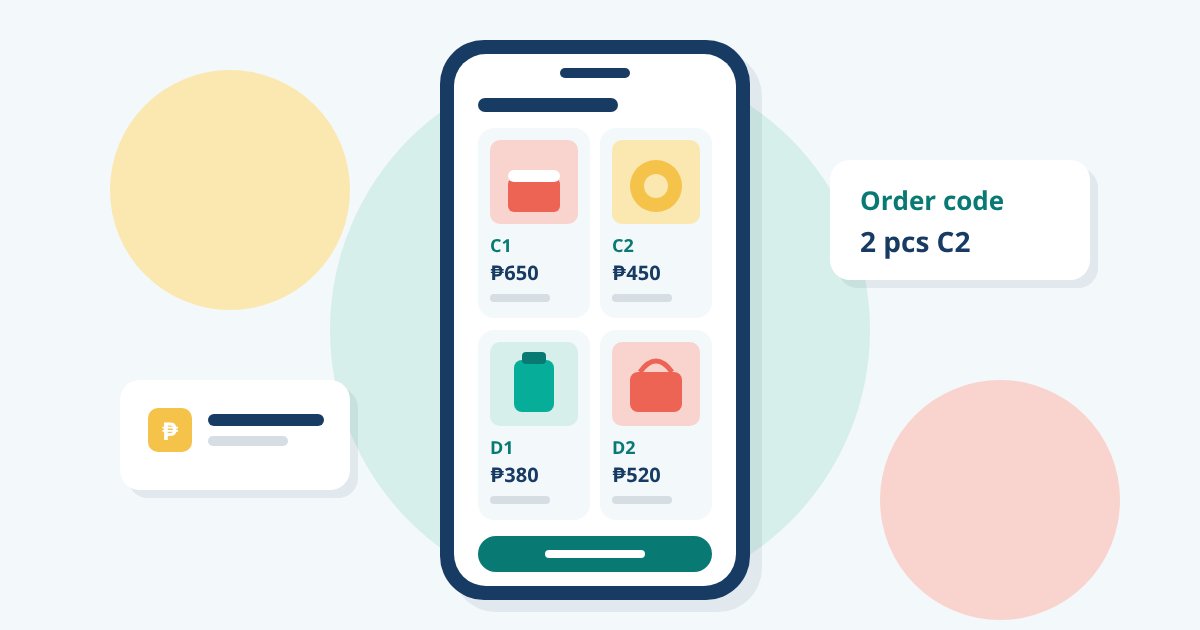
This small step saves a lot of confusion. Give each item a code, like C1, C2 and C3 for cakes, or D1 and D2 for dog food.
Then a customer can message "2 pcs C3, 1 pc D1" instead of "the chocolate one, the one with the strawberries on top, not the big one." You know exactly what they mean, and so does your staff.
Keep codes short and simple. Letters for the type and numbers for the item are enough. If you add sizes, add them after the code: C3-8 for the 8-inch, C3-6 for the 6-inch.
Take one clear photo per item
Each item gets its own photo. Customers should be able to tell items apart at a glance.
- Use daylight from a window, not a flash.
- Use the same plain background for every item, like a white table or a clean wall.
- Fill the frame with the item. Leave out clutter.
- Show the real product, not a photo from the supplier, if you can.
If an item comes in several colors or sizes, take one main photo, and add a second photo showing the choices side by side.
Write each item the same way
Put the details in the caption of each photo, in the same order every time. Customers learn the pattern quickly and stop asking.
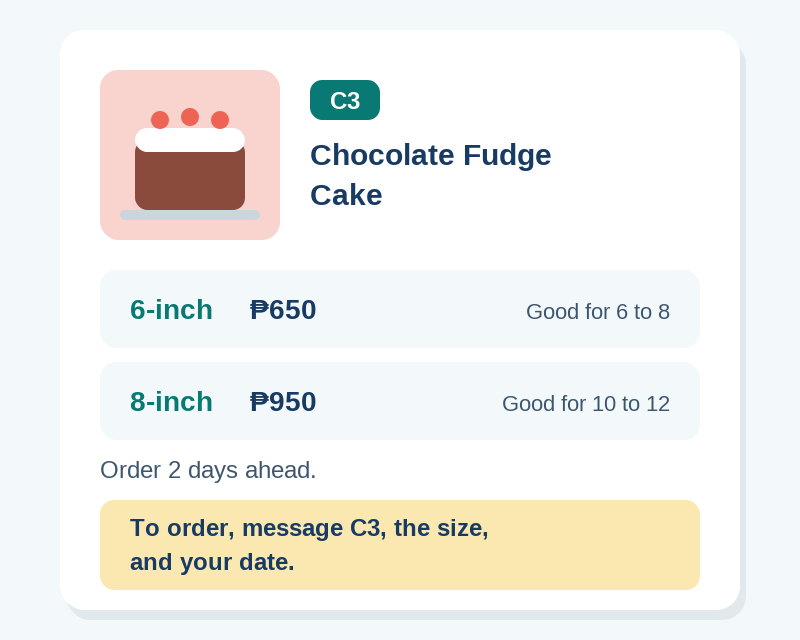
A good item caption looks like this:
C3 Chocolate Fudge Cake
6-inch ₱650 (good for 6 to 8)
8-inch ₱950 (good for 10 to 12)
Order 2 days ahead.
To order, message C3, the size, and your date.
Always include the price. Customers who have to ask "how much" often don't ask at all. They scroll past.
Put the catalog where customers can browse it
You have a few choices. Pick the one you will actually keep up to date.
A photo album on your Facebook page. This is the easiest, and it works for any page. Make an album called "Catalog" or "Price List," upload one photo per item with the caption from above, and pin a post that links to it. Customers can swipe through all the items without scrolling your feed.
Facebook's shop or catalog tools. Facebook has features that let a page show products with names, prices and photos. What is available, and how checkout works, depends on your country and changes from time to time, so look in your page settings to see what your page can use. If the setup feels like too much, an album does most of the same job.
One price list image. For a small menu, like a food seller with eight items, a single image with all the items, prices and codes is enough. Post it, pin it, and save it on your phone so you can send it in Messenger in one tap.
Whichever you choose, put a link or a mention of it in your page's intro, so new visitors find it first.
Add a "how to order" line everywhere
Every catalog needs clear ordering steps. Put them on the album description, the pinned post and the price list image.
Keep it to a few short lines:
- Message us the code, size and quantity.
- Tell us your date and whether it's for pickup or delivery.
- We confirm the total and send payment details.
Save the same steps as a saved reply in Messenger. When someone asks "how to order po," you answer in one tap.
Keep it up to date
A catalog with old prices causes more trouble than no catalog at all. Set a simple routine:
- When a price changes, update the caption the same day.
- When an item runs out for a while, add "Not available this week" to the caption instead of deleting it.
- Once a month, scroll through the whole catalog and check that every price and item is still correct.
If a customer orders from an old price that you forgot to change, honor it this once and fix the caption right away. It is cheaper than losing their trust.
A catalog that is always one link away
On Facebook, even a pinned album can be hard to find for someone who doesn't follow your page yet. A simple website can hold your full catalog, with photos, prices, codes and how to order, at one address you can share anywhere. We wrote about how the two work together in Do I Still Need a Website If My Business Is on Facebook?
DotCity builds a website from the Facebook page you already have. You get a free preview within 48 hours, and your first month is free. After that, the Standard plan is ₱1,499 a month, with no setup fee. Hosting and updates are included, and you can pay by GCash.
- Message us on Messenger for a free preview: https://m.me/dotcity.ph
- Or try our free audit to see what to fix first: https://dotcity.ph/audit