
The Facebook Page Details Customers Check Before They Message
Someone sees your aircon cleaning post shared in a neighborhood group. They tap your Page name to find out more. They look for a phone number, the areas you cover and your hours. The intro just says "Welcome to our page!" There's no number, no location and no hours.
They meant to message you later. They forgot. Next week, they booked someone else.
Your posts bring people to your Page. Your Page details decide whether they can reach you. It only takes about 20 minutes to fill them in, and you only need to do it once, with a quick check now and then.
Find where to edit your details
Facebook moves its menus around from time to time, so the exact buttons may look different on your phone. In general:
- Switch into your Page, so you're acting as the Page and not your personal profile.
- Open your Page and look for an option to edit details, or go to your Page settings.
- Look for sections like intro, contact info, location and hours.
Only people with the right access to the Page can change these details.
Write a short intro that says what you do
The intro, sometimes called the bio, is the short line near the top of your Page. It's limited to about 100 characters, so every word counts.
Skip the "Welcome!" and say what you do, where, and how to reach you:
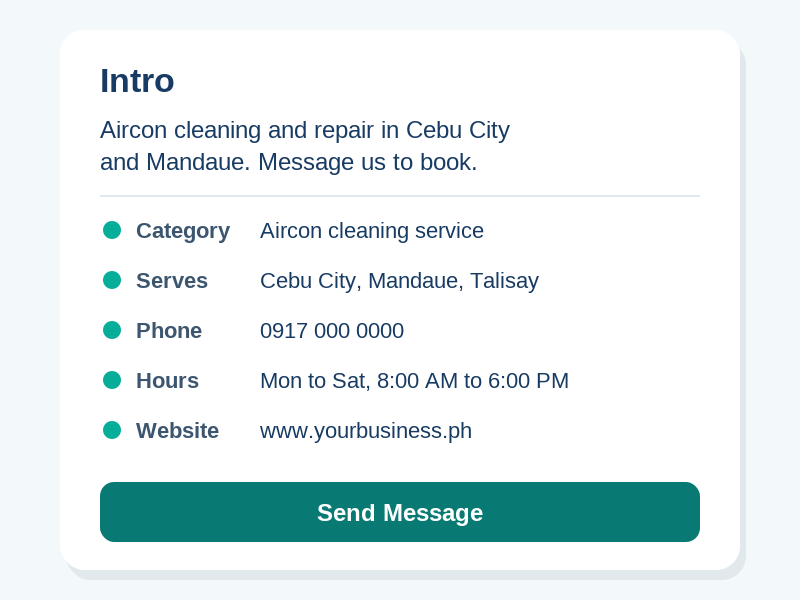
- "Aircon cleaning and repair in Cebu City and Mandaue. Message us to book."
- "Custom cakes and cupcakes, made to order. Pickup in Talisay or delivery."
- "Family dental clinic in Lapu-Lapu. Walk-ins and appointments."
Choose the right category
Your category appears under your Page name and helps people understand what you are at a glance. It also helps Facebook show your Page to people searching for that kind of business.
Start typing and choose from what Facebook suggests. You can pick more than one. Put the most accurate one first. A barbershop should use a barber category, not "Health/Beauty" alone, and a home bakery should look for bakery or dessert options instead of a general shopping category.
Add contact info you actually check
Add the phone number and email you really use. If you only check one of them, only add that one. An email that nobody opens is worse than no email.
Use the same mobile number you post in your captions, on your Google profile and on your shop sign. Customers notice when the numbers don't match, and some will wonder which one is real.
Messenger is usually turned on by default for Pages. Leave it on, since that is how most customers in the Philippines will reach you first.
Set your address or your service area
How you fill this in depends on where customers meet you.
If customers come to you, like a salon, clinic, gym or shop, add your full address and check that the pin on the map lands on your door. Then add a landmark in your intro or in a pinned post, such as "beside the barangay hall" or "second floor, above the pharmacy." Many people navigate by landmarks, not street numbers.
If you go to customers, like an aircon cleaner, a plumber or a home massage service, you may not want to show your home address. In that case, leave the street address off and tell people the areas you cover. Depending on your Page, you may see an option for a service area. If you don't, write the areas in your intro, for example "Serving Cebu City, Mandaue and Talisay."
Put in your real hours
Add your opening hours for each day, and mark the days you're closed. When hours are on your Page, Facebook can show people whether you're open now.
Update them when things change. Undas is a few weeks away, and the Christmas season after that. If you'll close early, open on a Sunday, or take a break for the holidays, change your hours and make a short post about it too.
Pick one action button
Your Page has a button near the top, under the cover photo. Facebook gives you a few choices, such as sending a message, calling, or booking. Pick the one that matches how most of your customers start.
- Send Message works for most small businesses, since customers already message you on Messenger.
- Call suits businesses where people want to talk first, like a towing service or a clinic.
- Book works if you take appointments and have a booking link or booking set up.
Then tap it on your phone to make sure it goes where you expect.
Add your website link
If you have a website, add it in the website field. It gives customers a place to see your full price list, services and location without scrolling through old posts.
If you don't have one yet, leave the field empty for now rather than linking to something half-finished.
Check your Page like a customer would
When you're done, look at your Page from a phone, the way a new customer would. Ask a friend to do it too. Can they tell what you sell, where you are, when you're open, and how to reach you, within a few seconds? If any of those takes more than a scroll, fix it.
Keep the same details on your website
Your Page details tell people how to reach you. A website shows the same name, number, hours and location, along with your services and prices, in one place that stays put. We wrote more about this in Do I Still Need a Website If My Business Is on Facebook?
DotCity builds a website from the Facebook page you already have. You get a free preview within 48 hours, and your first month is free. After that, the Standard plan is ₱1,499 a month, with no setup fee. Hosting and updates are included, and you can pay by GCash.
- Message us on Messenger for a free preview: https://m.me/dotcity.ph
- Or try our free audit to see what to fix first: https://dotcity.ph/audit